How to Track Construction Site Progress: A Method You Can Run This Week
Tracking progress on a job site comes down to one question you can answer with evidence: how much of each piece of work is actually done today, compared with what you planned? This guide gives you a simple weighted percent-complete method, a tracking table you can copy straight into a spreadsheet, and a way to back every number with dated photos. It works on a single-family remodel or a multi-trade commercial build, and it does not need scheduling software.
Most progress problems start with a vague definition. When a sub says the framing is 80 percent done, is that 80 percent of the walls standing, 80 percent of the labor hours spent, or 80 percent of the money billed? Those are three different numbers, and they drift apart quickly. Before you track anything, decide which one you are measuring.
For field tracking, use physical percent complete: how much of the work item is installed and in place, judged by what you can see and count. Schedule status (are we ahead or behind the plan?) and cost status (are we over or under budget?) are separate questions. You compare physical progress against a plan to learn about the schedule, and against billing to learn about cost. If you mix the three into one number, nobody can tell what is wrong when the number looks bad.
The five things worth measuring every week
1Percent complete per work item. Foundation, framing, rough-in, drywall, finishes: whatever your breakdown is, each line gets its own number.
2Planned versus actual. For each line, what percent should be done by today according to your schedule, and what percent actually is.
3Blockers. Anything stopping a line from moving: missing material, a failed inspection, weather, an open question for the architect.
4Evidence. At least one dated photo per line that moved this week, taken from a repeatable spot.
5Next action and owner. One sentence on what happens next and who does it. A tracker without owners is just a diary.
A construction progress tracking table you can copy
This is the structure we recommend. Paste it into any spreadsheet. The weight column is what makes it work: it lets you add up very different kinds of work into one honest project number.
Construction progress tracker: columns, what goes in them and why
Construction progress tracker: columns, what goes in them and why
Column
What to enter
Why it matters
Work item
One line per scope package: for example excavation, foundation, framing, roofing, MEP rough-in, drywall, finishes.
Keeps each trade accountable for its own number.
Weight (%)
Share of the total project this line represents. All weights add up to 100.
Contribution to the total is weight times change: 10 points on a 30% line adds 3 to the project total, while 10 points on a 5% line adds only 0.5.
Planned % to date
Where this line should be today according to your schedule.
Gives you the baseline for ahead or behind.
Worked example: turning line items into one project percentage
Here is the weighting at work on a small ground-up commercial building, simplified to five lines for space (a real project would use 8 to 20). The weights are decided up front, usually from the contract value or the labor plan for each line. Only the actual column changes week to week.
Example: five work items rolled up into 43 percent actual against 52.5 percent planned
Example: five work items rolled up into 43 percent actual against 52.5 percent planned
Work item
Weight (%)
Planned % to date
Planned weighted
Actual %
Actual weighted
Variance (points)
Foundation and slab
20
100
20
100
20
0
The actual total is 20 + 18 + 5 = 43 percent. The planned total is 20 + 22.5 + 10 = 52.5 percent, so the project is 9.5 points behind schedule. Notice what the variance column tells you that the total alone does not: framing is 15 points behind and rough-in is 20 points behind, so that is where the week's phone calls go. The total can look fine while a critical line is quietly slipping, which is exactly why you track by line.
How to track construction site progress, step by step
Step 1: Break the project into trackable lines
Aim for 8 to 20 lines. Fewer than that hides problems; more than that becomes a chore nobody keeps up. Each line should be something one crew or one trade can finish, so you can point to a single owner. If a line cannot be verified by looking at the work, split it until it can.
Step 2: Set weights and a baseline
Assign weights from contract value, budgeted labor hours or your own judgment of effort, as long as you use the same basis for every line and write down which one you chose. Then fill the planned column from your schedule so that you have something to compare against. Do this once, before work starts, and avoid changing it without a note.
Step 3: Capture dated photo evidence from fixed positions
Pick two or three fixed vantage points per area, such as a doorway, a corner or a stair landing, and shoot from the same spot every time. Progress is easiest to see when the frame does not change. Take a wide shot first, then a close shot of any detail you might need to defend later. Photos taken with the ConstruLog app are saved with the capture time and, when location permission is on, GPS coordinates and a street address, stored with each photo and shown next to it in the app and in the exported report.
Step 4: Update actual percent complete on a fixed rhythm
Weekly works for most projects; daily works for fast-moving ones like a tenant improvement with a hard move-in date. Walk the site, update the actual column with what you can verify, and attach the photo reference. Be strict: count a wall as framed only when it is framed, not when the materials are on site. Never round up to be polite.
Step 5: Log what happened each day
A progress number says where you are; the daily record says how you got there and why you slipped. Keep a short daily report with weather, crew counts, work performed by area, deliveries, inspections and delays. When a line falls behind, the daily reports are where you find the cause: a rain day, a late delivery, a failed inspection. The free template below follows that structure.
Step 6: Review variance and assign next actions
Once a week, sort the table by variance and look at the worst three lines. For each, write the blocker, the next action and the owner. This ten-minute habit is what actually changes the outcome; the percentages only point at the problem.
Step 7: Share the evidence with the people who need it
Owners and clients rarely want the whole spreadsheet. They want a short summary and a handful of photos. Send the weighted total, the two or three lines that matter, and the photos that prove them. If you use ConstruLog, a generated report can be shared through a public link that needs no login, or emailed to the client from the app.
Using photos as progress evidence
Photos are the cheapest progress measurement available, but only if they are consistent and labeled. A folder of two thousand unlabeled images is not tracking. Four habits make photos useful:
Same spot, same angle. Repeatable vantage points let anyone compare week 3 with week 7 at a glance.
Date and place on every photo. Record when and where it was taken so you never have to argue about it later. Keep in mind that in ConstruLog the date and GPS are stored as photo metadata, not drawn onto the image.
One line per photo. A caption such as "L2 east corridor, ceiling grid complete" is worth more than another fifty images.
Cover the unglamorous parts. Photograph the work before it is covered up: rebar before the pour, rough-in before drywall. These are the photos you will want when a question comes up months later.
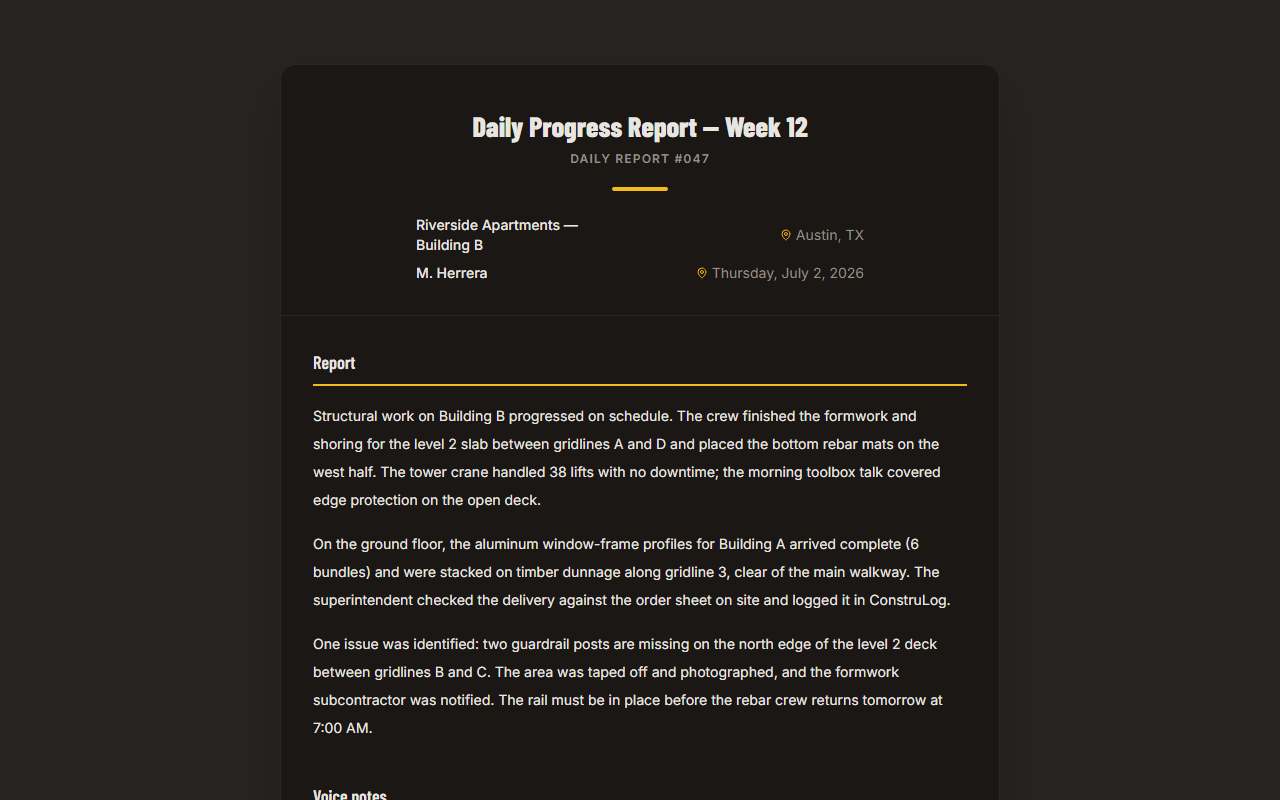
A sample generated report: project summary on top, photo documentation below. See the full version in the demo report.
If you want a second pair of eyes on the images, ConstruLog's per-photo AI analysis returns a short description, the construction stage, visible elements and progress notes, and it lowers its stated confidence when a photo is dark or blurry. It is a draft for you to review, not a substitute for your own walk. Read the details on how the AI works.
Before and after comparisons
Pairing a photo from the start of a task with one from the end is the easiest way to show a client what changed. ConstruLog lets you pair any two photos with an optional label. Before and after comparisons are not available on the Free plan; they come with Solo and the higher plans. If you are on Free, you can still do this by hand with fixed vantage points and a side-by-side in your report.
Free template: construction daily report
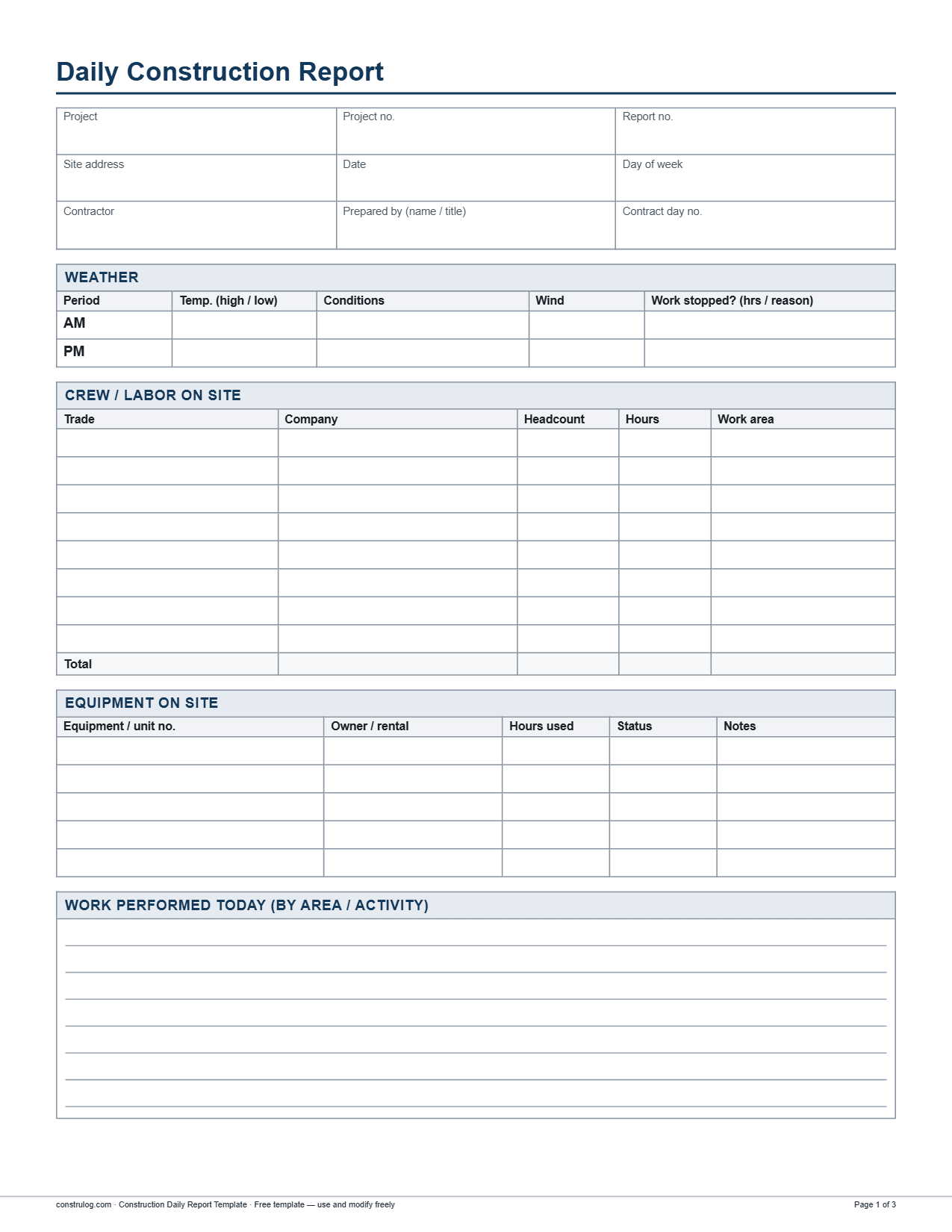
The tracking table above is the progress tool; the daily report is the evidence behind it. Our daily report template has fields for weather, crew and equipment on site, work performed by area or activity, materials delivered, inspections and visitors, safety, delays and open items, four photo slots with caption and GPS/time, and a signature block. It is not a percent-complete form, so use it alongside the tracker: copy the "work performed" and "delays" notes into your weekly review.
Free download
Construction daily report template
Free to use and edit. Direct download — no email, no account.
First page of the free construction daily report template (PDF). The Word and Excel versions have the same sections.
Where ConstruLog fits, and where it does not
ConstruLog is built for the evidence side of progress tracking: capturing photos, organizing them by project, and turning a day or a week of site material into a report. Concretely, you can:
capture photos and video on iOS or Android, with capture time and location stored per photo, and queue captures offline until a connection returns;
see every geotagged photo as a pin on a project map on the web;
build checklists with required items, due dates and verification photos, including one generated from a recorded voice walkthrough;
generate a daily log in one tap from that day's photos, voice notes and comments, with weather filled in when a photo has GPS;
create an AI-drafted report you edit before it goes out, then export it as PDF or DOCX or share it by link.
The Free plan costs $0, needs no credit card, and includes 1 active project and 3 AI reports per month. New accounts also get a 14-day trial with Teams-level access. See pricing for the plan limits, or try the no-account report generator first.
Common mistakes when tracking progress
Counting delivered material as installed work. Stock on site is not progress.
Reporting progress by feel. If you cannot point to a photo or a count, the number is a guess.
Changing weights mid-project without a note. The total will jump and nobody will trust it.
Tracking only the total. A healthy total can hide a late critical trade, so always read the variance column.
Skipping the daily record. Without it you can see that you are behind but not why.
Break the project into work items, give each a weight, set a planned percent to date, and update the actual percent complete on a fixed rhythm, weekly or daily. Back each update with a dated photo, and review the variance between planned and actual to decide where to act first.
How do you calculate percent complete on a construction project?
Multiply each work item's weight by its actual percent complete, divide by 100, and add the results. In the example above, 20 + 18 + 5 + 0 + 0 gives 43 percent overall. Use the same basis for the weights on every line, such as contract value or labor hours.
How do you make a daily progress report in construction?
Record the date, weather, crew and equipment on site, work performed by area, deliveries, inspections, safety items and delays, then add photos and sign it. Our free daily report template is laid out exactly this way, and you can download it as PDF, Word or Excel.
What is construction progress documentation?
It is the dated record that shows what was built and when: photos, daily reports, inspection results and sign-offs. Good documentation lets you prove progress to an owner, support a payment request and resolve disputes about when work was done.
How often should you update construction progress?
Weekly is enough for most projects. Update daily on fast-moving work with hard deadlines. Take photos from the same fixed positions each time so changes are easy to compare.
Do I need software to track construction progress?
No. A spreadsheet with the columns above and a disciplined photo habit will do the job. Software helps with the evidence side, such as organizing photos by project, building daily logs and generating reports. It does not replace walking the site and judging what is really done.
What are the best construction site progress photos to take?
Take a wide shot and a close shot from the same fixed positions each visit, and photograph work before it is covered up, such as rebar before a pour or rough-in before drywall. Add a one-line caption to each so the photo explains itself later.
Can ConstruLog show before and after photos of site progress?
Yes, on paid plans. You can pair any two photos with an optional label. The Free plan does not include before and after comparisons, but it does include photo capture, AI photo analysis within the monthly quota, and reports.