Construction Photo Report Template: Free Download and How to Fill It In
A good construction photo report turns a camera roll into evidence: each photo is dated, located, described and tied to a finding and a next step. This page gives you a free construction photo report template in PDF, Word and Excel, explains what every photo documentation entry needs and why, and walks through how to build the report from start to finish. If you would rather not type every caption, you can also with a few of your own photos.
What a construction photo report is (and what it is for)
A construction photo report is a short document built around photographs of the job site. Each photo sits next to the facts that make it usable: when it was taken, where, what it shows, whether it reveals a problem and what should happen next. The photos are the proof; the text is what lets someone who was not there understand the proof.
It is different from a daily report, which records the day (crews, weather, work performed, delays) in words and numbers, and from a pile of pictures in a shared folder, which records nothing until someone explains it. Superintendents, project managers, inspectors, owners, lenders and insurers all ask for photo reports for the same reason: they need to see the condition of the work without driving to the site. If you also keep a daily record, the construction daily report template pairs well with this one.
Typical uses are progress reports for the owner or lender, documentation of existing conditions before work starts, proof that concealed work was installed correctly before it was covered, records of a deficiency and its correction, and evidence for a claim, a change request or a warranty dispute.
Download the free construction photo report template
The template is free to use and modify. It comes in three formats so you can use whichever your team already works in: PDF to print and fill in by hand, Word to edit and type into, and Excel to keep a running photo log.
Free download
Construction photo report template
Free to use and edit. Direct download — no email, no account.
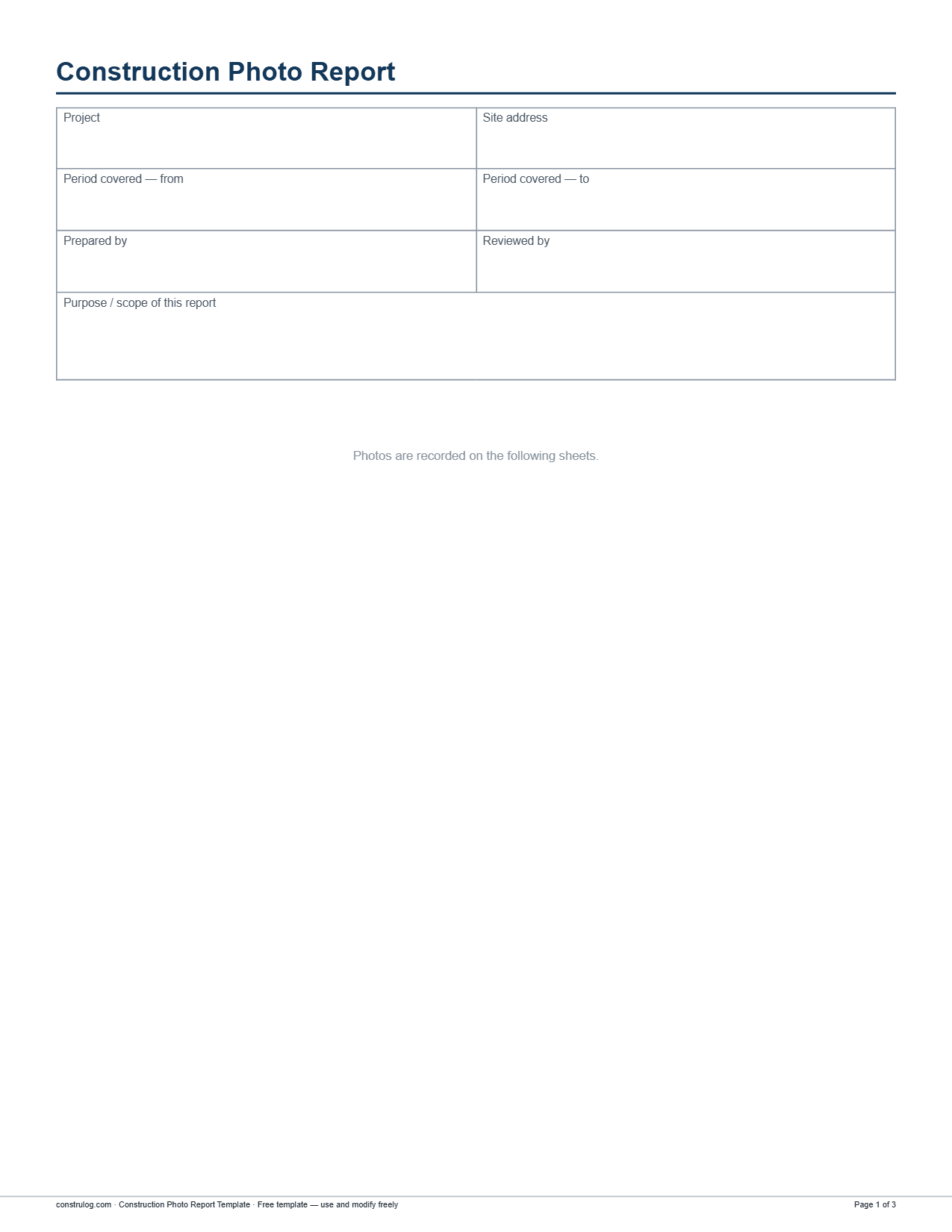
Page one of the PDF is the cover block; the photo log starts on the next sheet.
What is inside the template
Cover block: project, site address, period covered (from and to), prepared by, reviewed by, and a free-text box for the purpose or scope of the report.
Photo log (PDF and Word): a numbered grid of photo slots, two per row and six per page, over two pages. Each slot has a space for the photo and these fields: date and time, GPS, location or area, description, finding and recommendation.
Finding with severity (PDF and Word): under the Finding line each slot has a Severity checkbox row with Low, Medium, High and Critical, so every observation gets rated on the same scale.
Excel version: a table with one row per photo and the columns #, Date / time, GPS, Location / area, Description, Finding, Severity and Recommendation. Here Finding and Severity are separate columns, and Severity is a drop-down list with the same four levels.
What every photo entry needs, why, and how to capture it well
A photo with no context is an opinion. A photo with six pieces of context is evidence. The table below lists what each entry in a construction photo report should carry, the reason it matters when the report is questioned in a claim, a dispute or an inspection, and the habit that makes it easy to capture on a busy site. It maps directly onto the template fields.
What each photo entry needs, why it matters (claims, disputes, inspections) and how to capture it well
What each photo entry needs, why it matters (claims, disputes, inspections) and how to capture it well
Entry element
Why it matters
How to capture it well
Date and time
Claims and disputes turn on sequence: what the condition was before another trade or a storm, and what it was after. An inspector also needs to know the photo is current.
Rely on the capture time your phone records rather than typing it later. Keep the phone clock on automatic time. Do not rename or edit the original file.
Location (GPS and area)
Proves the photo is of this site and answers "which wall, which floor, which unit" without argument. GPS supports the claim but does not prove it on its own.
Turn location services on for the camera app. Then write the area in words (level, grid line, room, elevation) because GPS alone cannot tell floors apart.
Two habits cover most of the rest. First, photograph work before it disappears: rebar before the pour, rough-in before the board, waterproofing before the backfill, framing before insulation. You cannot go back for these. Second, shoot from the same spots each time so a series of photos shows change instead of a different angle. The guide on how to track construction site progress goes deeper on fixed vantage points, and how to monitor construction site quality covers what to check at each hold point.
How to make a construction photo report, step by step
1Decide the purpose and the period. Write one or two lines in the scope box: monthly progress for the owner, pre-pour inspection, existing conditions before demolition, or a deficiency record. The purpose decides which photos belong.
2Capture with the log in mind. Take wide and close shots, keep a scale in frame and photograph concealed work before it is covered. Do it during the walk, not from memory at the end of the day.
3Sort and select. Delete blurry or duplicate shots, then pick the photos that support the purpose. A report with 12 clear photos is more useful than one with 80 unlabeled ones.
4Fill in each entry. Enter the date and time, location, a factual description, a finding with its severity and a recommendation. Number the photos so the text can refer to them.
5
Do photos need a timestamp and GPS stamped on them?
Many teams assume a date and location must be printed on the picture itself. It does not have to be. Phone cameras record capture time and, when location is on, coordinates as metadata, and a report can print that data in text next to each photo. What matters is that the information is recorded at the time of capture, kept consistently and not altered afterward. Text drawn on an image is easy to fake and tells a reviewer nothing the metadata and the report entry do not.
ConstruLog works this way. The mobile app records the capture time with each photo and, when location permission is granted, the GPS position and a street address looked up from it. Those values are stored with the photo and shown beside it in the app and in the PDF and Word report, not burned into the image. Be careful with how far you push this: time and location data support when and where a photo was taken, but they do not prove it by themselves, so keep your own written notes as well.
Making the report faster with ConstruLog
Filling a template by hand is fine for a handful of photos and slow for a hundred. ConstruLog is built to cut that time. In the mobile app you take photos on site, and they keep their capture time and, with location on, GPS position. If you have no signal, photos and videos taken offline are saved on the phone and upload automatically when a connection returns. Only photo and video capture works offline; reports and comments need a connection.
For each photo you choose, the AI returns a short description, the visible elements, safety and quality findings, each with a severity of low, medium, high or critical and a recommended action, and a note when the image is too dark or blurry to confirm anything. You then generate a report that arranges the photos, descriptions and findings into a PDF or a Word file. The output is a draft: you review and edit the text before it goes out, and the PDF says it was prepared with AI assistance and reviewed by its issuer. How the analysis works, and what is sent to the AI provider, is explained on the how AI works page.
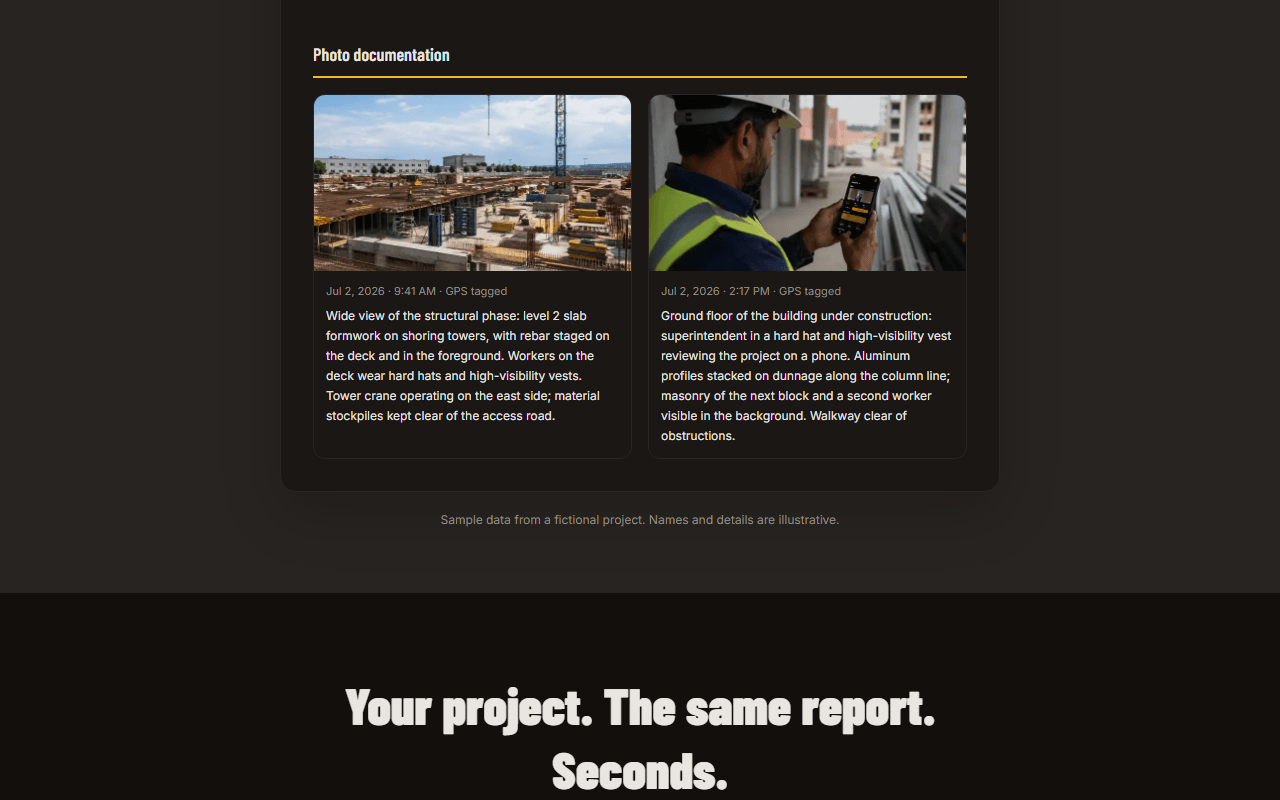
The photo section of the ConstruLog sample report: each photo with its date, time, GPS tag and the AI description. The content is demo data.
The Free plan costs $0, needs no credit card and includes 3 AI reports and 20 AI photo analyses per month, on one active project. Free reports carry a ConstruLog header. Paid plans remove it and let you add your own logo and colors, and offer extras such as a client signature on the report. See pricing for the limits.
The try page takes up to three photos with no account. The AI drafts the findings and a report from them, and if you like it, you can create a free account to keep the draft. It is a quick way to see whether the output is good enough for your jobs before you commit to anything.
Common mistakes in construction photo documentation
No context. A close-up of a crack with no location, no scale and no date cannot be used for much. Take the wide shot too.
Photographing too late. Concealed work needs to be photographed before it is covered, because the photo is the only record afterward.
Opinions in the description. "Terrible workmanship" invites a fight. "Gap of about 1/2 inch at the joint, no sealant" does not.
Inconsistent severity. If one inspector calls it High and another Low, readers stop trusting the scale. Define the levels once.
Never closing the loop. Documenting a defect without a follow-up photo after the fix leaves the issue open on paper forever.
Editing originals. Cropping, filtering or renaming the only copy of a photo makes it harder to defend. Keep the original and work from a copy.
Skipping the review. Typos and wrong location names undermine otherwise good evidence. A second pair of eyes takes minutes.
Frequently asked questions
What is a construction photo report?
It is a document that presents job site photographs with the context needed to use them: date and time, location, a description, any finding with its severity and a recommended next step. Owners, lenders, inspectors and insurers use it to understand the condition of the work without visiting the site.
What should be included in construction photo documentation?
For every photo: the date and time, the location, a factual description, whether it shows a problem and how serious it is, and what should happen next. Add a wide shot with each close shot and a scale reference such as a tape or level. The table on this page lists each element and why it matters.
Is there a free construction photo report template?
Yes. The Construction Photo Report Template on this page is free to use and modify, and you can download it as a PDF, a Word file or an Excel spreadsheet. It has a cover block and a numbered photo log with fields for date, GPS, location, description, finding and recommendation.
How do I make a construction photo report?
Set the purpose and period, capture wide and close shots with a scale in frame, select the best photos, fill in the date, location, description, finding and recommendation for each, group them by area or trade, have someone review it and then send it as a PDF. The step-by-step section above covers each stage.
How often should I produce a photo report?
It depends on the contract and the risk. Many teams issue them weekly or monthly for progress, and also when a specific event calls for it, such as before covering concealed work, after a storm or when a deficiency is found. Check what your contract or lender requires.
Do I need GPS and a timestamp on every construction photo?
It is a good habit because location and capture time help show when and where a photo was taken. They support the record but do not prove it alone, so add the area in words and keep the original file. The data does not have to be printed on the image; it can be stored with the photo and shown in the report.
Is there a free construction photo app?
ConstruLog has a Free plan at $0 with no credit card required. It includes 1 active project, 3 AI reports and 20 AI photo analyses per month, and its PDFs carry a ConstruLog header. Compare the plans on the pricing page, or try it without an account.
Can AI write my construction photo report?
It can draft one. ConstruLog analyzes the photos you choose and produces descriptions, findings with a severity and recommendations, then assembles a report. The result is a draft that you review and edit; it does not replace an inspector or your own judgment, and it can only describe what is visible in the photos.
The wide shot places the condition in context; the close shot shows the detail. A close shot alone is hard to place, and a wide shot alone hides the defect.
Always take the wide one first, then the close one. Number them as a pair in the report so the reader sees them together.
Scale reference
Turns "looks too small" into a measurement. Inspectors and engineers can judge size, spacing and cover when something known is in frame.
Hold a tape, level, ruler or marked rod in the frame. Keep the reading legible and the camera square to the surface.
Description
One factual sentence stops the reader from guessing what they are looking at. It is also what you are held to later, so keep it neutral.
Say what is visible, not what you think caused it: "Anchor bolts at grid C-4, nuts not installed" rather than "sloppy work".
Finding and severity
Separates "documented" from "needs action". A consistent scale tells the superintendent and the owner what stops work and what waits for the punch list.
Pick the four levels (Low, Medium, High, Critical), write one line defining each, and use them on every report. Rate the condition, not the person.
Recommendation
Shows you identified the problem and proposed a fix, which matters when someone asks why nothing was done. It also assigns the next step.
Use a verb and an owner: "Sub to re-seal the joint before drywall; re-inspect Thursday". Add a follow-up photo when it is closed.
← Swipe sideways to see every column →
Group by area or trade. Order the entries by location or by trade rather than strictly by time, unless sequence is the point. Put the high and critical findings where they are easy to find, or summarize them at the top.
6Review before sending. Have someone other than the author check descriptions against photos. The template has a "reviewed by" field for exactly this.
7Send, file and follow up. Issue the report as PDF, keep the Excel log, and carry open findings into the next report with a closing photo once they are fixed.